Clarity can link an account to a person by its employee ID, but only between applications it trusts to use the same employee IDs. Each trusted pair of applications is called an employee-ID pair. This article explains where to see an application's pairs, how to read their status, and how Admins add, edit and remove pairs.
Employee ID only links accounts across a pair
If an application's accounts have employee IDs but the application has no Active pair, Clarity does not use employee ID to link those accounts to identities. Other matching, such as email address, still applies.
Who can see and change pairs
On an application: anyone who can view the application sees its pairs on the Application Attributes tab. This view is always read-only.
In Settings: users with read-all or audit access see every pair in Settings > Username/Identifiers. For them the section description ends with Read-only.
Admins also get the Add pair, Edit and Remove controls in Settings.
Check an application's pairs
Go to Applications and open the application.
Select the Application Attributes tab.
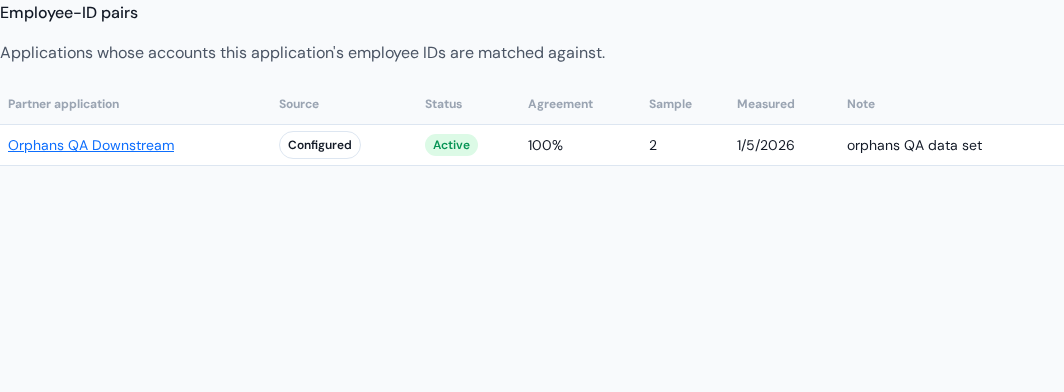
Scroll to Employee-ID pairs, below the attribute mappings. Each row is one application this application's employee IDs are matched against.
Column | What it shows |
|---|---|
Partner application | The paired application. Select its name to open that application's Application Attributes tab. A partner that no longer exists is marked (not live) and has no link. |
Source | Configured means an Admin set the pair up in Settings. Connector-declared means the connector itself declares the pair (for example, UKG Onboarding with UKG Core). |
Status | Active means employee ID is used to link accounts across this pair. Ignored means it is not, and the reason is shown next to the badge. |
Agreement | How often the two applications' employee IDs agreed when the pair was checked, shown as a percentage. |
Sample | How many accounts were checked. |
Measured | The date the pair was checked. |
Note | Any note recorded with the pair. |
Agreement, Sample, Measured and Note are filled in for configured pairs only.
If you can view Settings, a Manage employee-ID pairs in Settings link under the table takes you to the Settings section.
Messages you may see instead of a table
Message | What it means |
|---|---|
No paired applications. Employee ID won't link this application's accounts to identities. | This application's accounts have employee IDs, but no pair exists for it, so those IDs are never used to link accounts to people. An Admin can add a pair in Settings. |
This application's accounts carry no employee ID, so employee-ID matching doesn't apply to it. | Nothing to do. The application has no employee IDs to match. |
The employee-ID pair setting can't be used (…), so no configured pairs apply. | The pair setting for your organization can't be read, so no configured pair applies anywhere. Contact Clarity Support. |
Why a pair is Ignored
Reason shown | What it means |
|---|---|
Agreement rate below the minimum | The two applications' employee IDs agreed less often than required. The minimum is shown in Settings and is normally 99%. |
Agreement rate missing | The pair was recorded without an agreement rate. |
Application missing or deleted | One of the two applications no longer exists. |
Pairs an application with itself | Both sides of the pair are the same application. |
Entry must list exactly two applications or Application ID missing or not a number | The pair was recorded incorrectly. Contact Clarity Support. |
Partner employee identifier could not be read or Partner employee identifier is not personId | Applies to the connector-declared pair UKG Onboarding with UKG Core, which is only used when UKG Core identifies people by |
Any other text | A reason Clarity does not have a label for yet. The text is shown as it was recorded. |
An ignored pair appears on both applications with the same reason, so you can spot it from either side.
Review all pairs and their history
Go to Settings > Username/Identifiers.
Scroll to Employee-ID application pairs, below the Save Edits button.
Read the line above the table. It shows the minimum agreement a configured pair needs, for example Configured pairs need an agreement of at least 99%.
Each row shows both applications in the Applications column, then the same Source, Status, Agreement, Sample, Measured and Note columns as on the application. Select either application name to open its Application Attributes tab. A connector-declared pair also shows which application declares it.
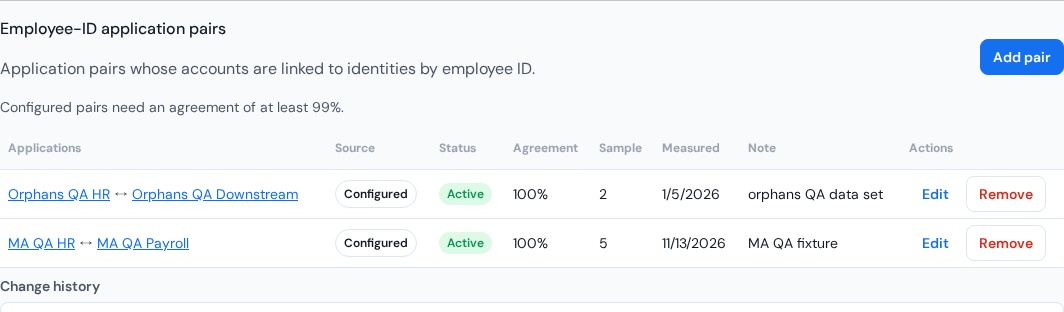
If no pairs exist, the section says No employee-ID pairs exist, so employee ID won't link accounts to identities across applications.
Unreadable entries, if shown, lists pair entries that are too malformed to tie to any application, with the reason for each. Contact Clarity Support if you see this list.
Change history
Under Change history, each change to the pairs is one row showing who made it and when. Select a row to see a summary, such as Added 1 pair, removed 0 pairs, changed 0 pairs., and the full value Before and After the change.
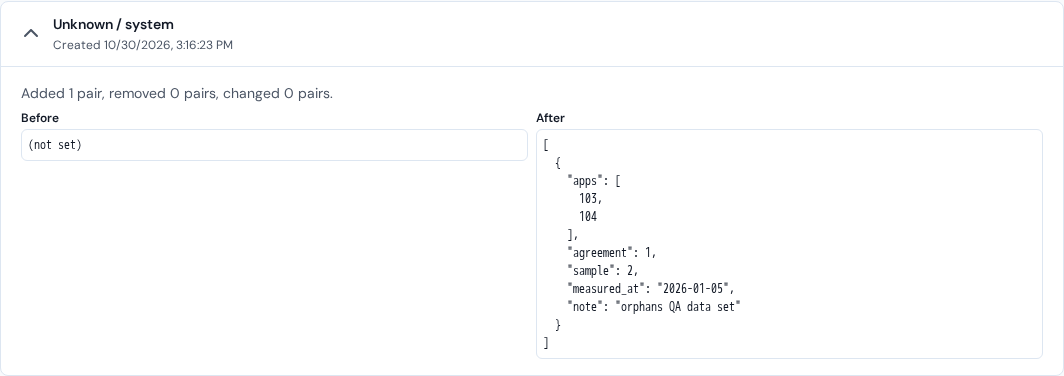
Changes made by Clarity's own setup tools, or before change tracking began, show as Unknown / system.
Add a pair
Only Admins can add pairs. Before you start, check how well the two applications' employee IDs agree: you enter that measurement yourself.
Go to Settings > Username/Identifiers and scroll to Employee-ID application pairs.
Select Add pair. The Add employee-ID pair dialog opens.
Fill in the fields:
Field | Format | What to enter |
|---|---|---|
First application and Second application | Dropdown | The two applications to pair. An application chosen on one side can't be chosen on the other. |
Agreement | Decimal from 0 to 1, not a percentage. | How often the two applications' employee IDs agreed. It must meet the minimum, normally |
Sample size | Whole number greater than 0 | How many accounts you checked. Anything else is rejected with sample must be a positive integer. |
Measured date | Date, chosen with the date picker | The date you checked. |
Note | Optional text, up to 1,000 characters | Context for whoever reads the history later. |
The hint under Agreement reads A pair needs an agreement of at least 99%., but the field takes the decimal form, so enter 0.99 rather than 99.
Select Preview. This is a dry run and changes nothing. A badge shows the result:
Preview result | What it means |
|---|---|
Active, can be saved | The pair will be used for employee-ID linking. |
Active, will replace the existing pair for these applications | A pair for these two applications already exists. Saving replaces its details, and the button changes to Replace pair. |
Can't be saved: followed by a reason | The pair would be ignored, for example because the agreement is below the minimum. Nothing can be saved until this is fixed. |
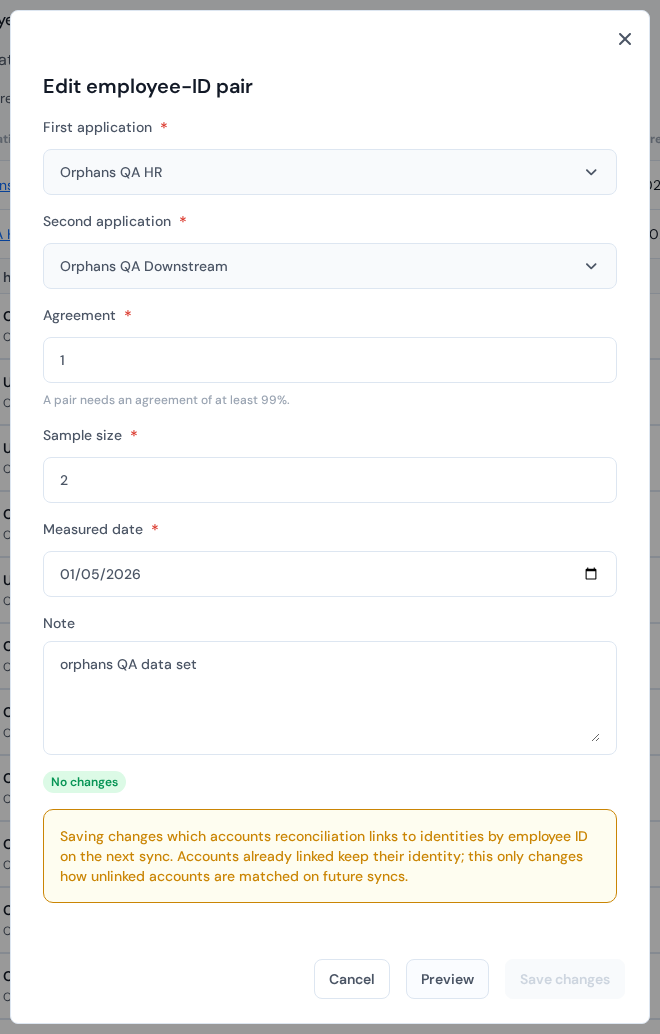
Read the warning above the buttons: Saving changes which accounts reconciliation links to identities by employee ID on the next sync. Accounts already linked keep their identity; this only changes how unlinked accounts are matched on future syncs.
Select Add pair. The button is available only after a successful preview. Changing any field clears the preview, so select Preview again after each edit.
The message Employee-ID pair saved. confirms the change, and the table and change history refresh.
Pairs save immediately
Adding, editing or removing a pair takes effect as soon as you confirm it in the dialog. You do not need to select Save Edits on the page, and Discard does not undo it.
Edit a pair
In Employee-ID application pairs, select Edit on the pair's row. The Actions column appears only for Admins, and only configured pairs have buttons in it.
Change Agreement, Sample size, Measured date or Note. The two applications are locked. To change the applications, remove the pair and add a new one.
Select Preview. If what you entered matches what is already saved, the result is No changes and there is nothing to save.
Select Save changes.
Remove a pair
In Employee-ID application pairs, select Remove on the pair's row.
The Remove employee-ID pair dialog names both applications and explains that accounts already linked stay linked. Only new employee-ID links between these applications stop, from the next sync.
Select Remove pair to confirm, or Cancel to leave the pair as it is.
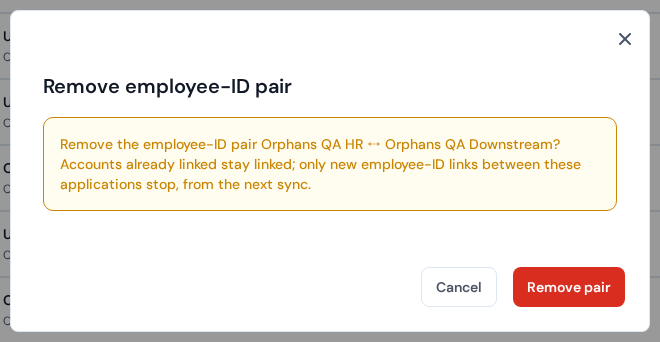
The message Employee-ID pair removed. confirms the change.
Connector-declared pairs are read-only. They can't be edited or removed here.
If the controls are disabled
If the pair setting is broken, Add pair, Edit and Remove are disabled and the section says Pairs can't be edited while the setting is broken. Contact Clarity Support to repair it.
Tips
Only pair applications whose employee IDs really match. A wrong pair can link accounts to the wrong people on the next sync, which is why a pair needs at least 99% agreement.
Always preview first. It shows whether a pair can be saved without changing anything.
Removing a pair doesn't unlink anyone. Accounts already linked stay linked. Only new links between those applications stop.
Start at the Application Attributes tab when an application's accounts aren't linking by employee ID. An Ignored pair, or the No paired applications warning, usually explains it.
Use the change history to find out when linking stopped. It shows what changed, when, and who changed it.
Need Help?
If you have any problems, contact your customer success team. You can also get in touch with our general support via email, open a support ticket. Our general support team is available Monday - Friday from 8:00 AM - 6:30 PM CST.